SAFE U Worker Feedback
listens to your site.
Submit anonymously with a single QR scan,
and get results back automatically by KakaoTalk.
* Supports OSH Act Articles 36, 52 and 75 · SAPA Enforcement Decree Article 4(7)
See How It Works
How much of your site are you really hearing?
-
Is anonymity guaranteed?
Voices that fear retaliation never reach you. In verbal reports, paper suggestion boxes and meetings alike, the speaker is exposed. When workers worry their names will get out, they stay silent even when they see a hazard.
-
Is the channel open to everyone?
More than half of construction site workers are day laborers, subcontractors or foreign workers. For more than half of the site, installing an app during a five-minute break is hard.
-
How is feedback being handled?
Words passed along on paper or by mouth leave no trace. They are hard to accept as the “evidence for compliance checks” required by OSH Act Article 36(3) and SAPA Enforcement Decree Article 4(7).
-
Are you sharing the results?
Without a reply on the outcome, there will be no second report. Formally informing submitters of the outcome is also a key requirement of the amended OSH Act Article 36.
Here’s how SAFE U WORKS manages it
-
Worker
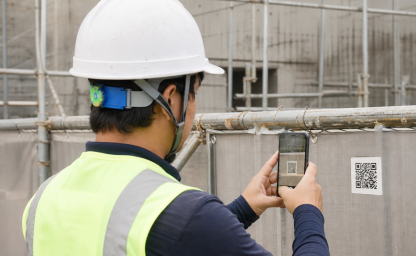
Safe and anonymous
Just point a phone camera at the QR code to send feedback anonymously, with no sign-up.
-
Safety Manager

Peace of mind with automatic records
Every record is saved automatically for three years and can be used as is for SAPA inspections.
-
Workers and Safety Managers

Automatic alerts through to the result
When feedback comes in, the manager gets a KakaoTalk notification automatically. When it is resolved, the worker does.
How to Use, Step by Step
1. Create and post site QR codes
Safety ManagerRegister zones
Register where the QR codes will be posted. You can add sub-zones inside a zone (e.g., 2F inside Building A).
- 01On the Site QR Management screen, click ‘Create QR’.
- 02In ‘Zone Settings’ on the ‘Create Site QR’ screen, add the main zones and then the sub-zones.
Create the QR code and post it on site
Set the guidance message, categories and who is notified of new submissions, then save to create the QR code.
- 01Choose whether photos are required, the submission method and who is notified, and enter the guidance message.
- 02Click ‘Complete’ to create the QR code. Select the QR in the list, then click ‘Download QR’ to save the image.
2. Submit feedback by scanning the QR
WorkerScan the QR code posted on site
Scan the posted QR code.
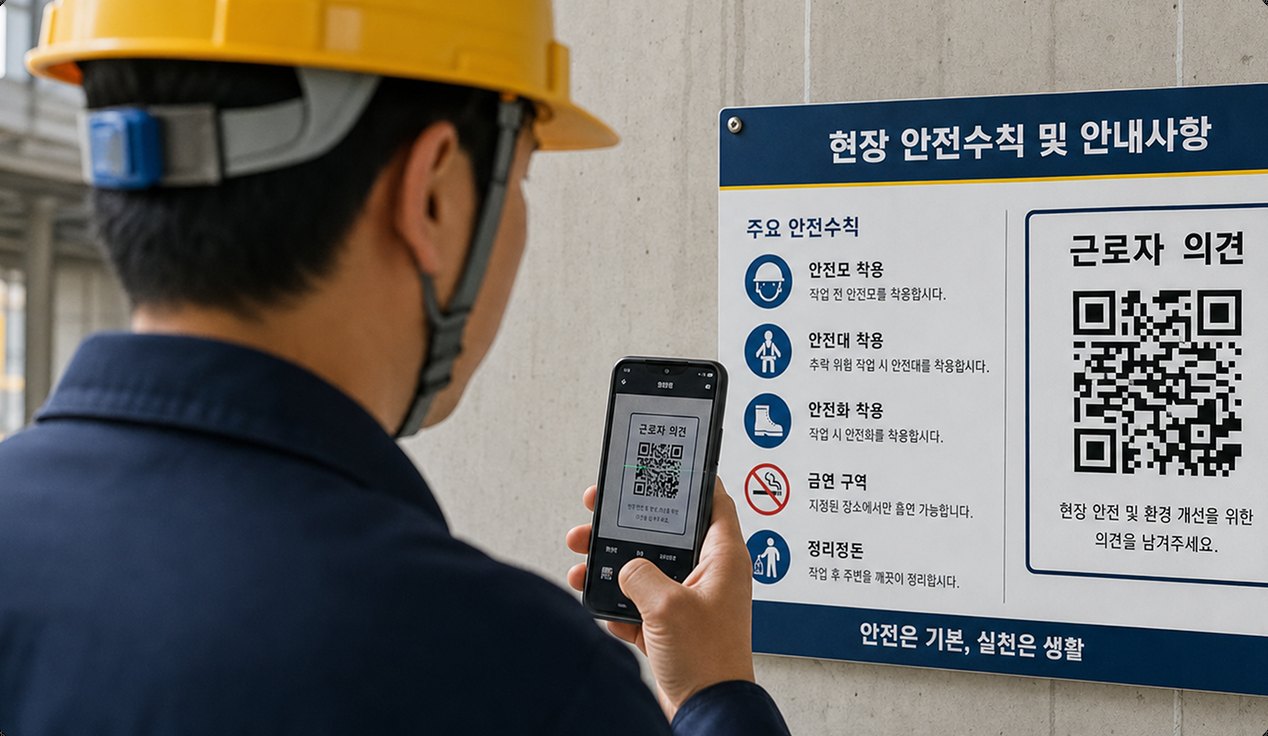
Submit feedback anonymously or by name
When a worker points a phone camera at the QR code, the submission screen opens right away.
- 01Enter the category, feedback and photos, then choose Anonymous or Named.
- 02To get the result, select ‘Receive result notification’.






3. Handle feedback and take action
Workers and Safety ManagersReview received feedback
A list screen that shows all feedback from the site at a glance.
- 01Find it in ‘Feedback Inbox’ under ‘Worker Feedback’ in the left menu.
- 02Click a feedback row to open its details.
Assign a person in charge
Once you assign someone, they automatically get a KakaoTalk notification.
- 01On the feedback details screen, click ‘Edit’ next to the person in charge and choose someone.
- 02Click ‘Select’ and a KakaoTalk message is sent to them automatically.
Record the action taken
When the person in charge records the action, the result is sent automatically to the worker who submitted the feedback.
- 01The person in charge records the action taken and adds photos.
- 02The result is sent automatically to anyone who selected ‘Receive result notification’.
*Action records are saved automatically for three years, so there is nothing extra to prepare for SAPA inspections.
FAQ
-
Yes. When Anonymous is selected, no IP address or device information is stored. On the manager’s screen, the submitter appears only as ‘Anonymous’, and their company and phone number are not shown.
This is how the system upholds the OSH Act Article 52 duty to prohibit “unfavorable treatment for expressing opinions.”
The phone number you enter is used to send you the result only if you check “Receive result notification” yourself. -
Workers who submit via QR, leave a phone number and select “Receive result notification” get the result by KakaoTalk notification once the action is complete.
Tapping the [View action result] button in the notification opens the Opinion status screen with the action details right away.
Users logged in to SAFE U WORKS can view the list and status of their own feedback anytime in the “Submit Feedback” menu. -
No. Point a phone camera at the QR code posted on site and the submission screen opens right away, with no login or sign-up.
Day laborers and subcontractor workers can take part right away in the same way.
The submission screen is available in 한국어, English and 中文, and you can upload up to 3 photos (10MB total). -
Yes. When creating a QR code, you set the zone, sub-zone, person in charge, categories, whether photos are required, submission method (Anonymous/Named), who is notified and the guidance message for each QR.
Zones are added in “Zone Settings”, split into main zones and sub-zones.
In the “Site QR Management” list, you can see the number of pending, in-progress and completed items for each QR at a glance, and turn each QR on or off. -
All feedback and action records are kept for at least three years. This policy addresses the OSH Act Article 36(3) duty to “keep records of results.”
The feedback details screen keeps the feedback, photos, person in charge, action deadline and action taken in one place, so there is no need to gather documents separately for inspections.